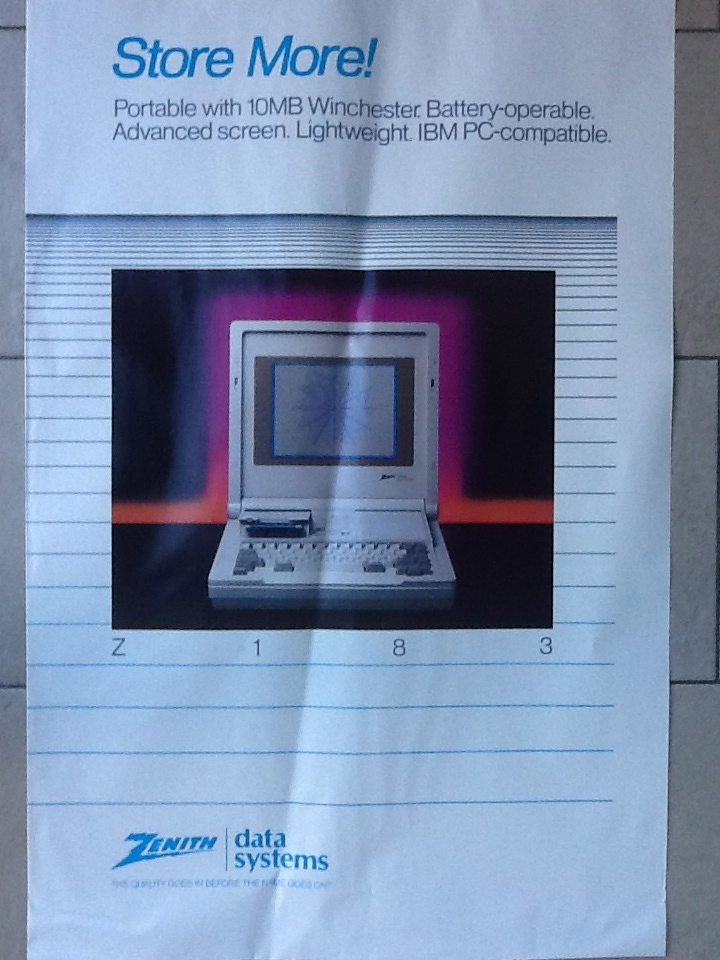
Can you imagine? Once upon a time, 10 Megabyte was enough for storing all your data…
Poster found in our basement while cleaning up.
Category: IT-stuff
Screen rotation on the HP Elitebook 2740p
The HP Elitebook is one of the best devices I ever used, but it has some serious issues with the screen rotation of the tablet. If you turn the screen around to use the pc as a tablet, you should be able to change the orientation of the screen with the rotate button.
In some cases, the screen rotates automatically, sometimes it does not, and the rotate button does not always work as expected.
This is what solved the issue for me:
- install the latest Intel HD video driver from the HP support site
- install or reinstall the HP Quick Launch buttonĀ drivers from the same site
Microsoft OneNote available for iPad
Last week, Microsoft released the OneNote app for iPad in the app store. It is the first version of the app, and still lacks some functionality I would like to see added, but it is a great first step. These are the things you should know:
- the app is free, but is limited to 500 notes; if you want more, you can unlock this limitation with an 11,99 EUR in-app purchase. I consider myself a heavy OneNote user, and I am currently at 320 pages. So with some management, you can stay under the limit.
- Notes are synced with Windows Live Skydrive, so you will need a Windows Live ID to use the app. Advantage is that you have an online backup of your notes, and you can even edit them on Skydrive in the web app.
- If you use formatting extensively in OneNote, you will be disapponted that a lot of these features are not supported in the iPad app. You get plain text. There is some room for improvement here.
- Written notes (ink on a tablet pc) are not visible in the iPad app. Sometimes the app crashes on pages that contain a lot of written notes.
There is also an iPhone version of the application. And if you are thinking about converting your entire Evernote archive to OneNote, my colleague Frank pointed us to a conversion tool. Although you might want to wait with that until the 2.0 version of the OneNote app is released…
Sharing a OneNote notebook: always a good idea!
For a lot of people, Microsoft OneNote is the electronic alternative of their
“little black book” that they take to meetings, to write down their action items
and notes. But it is much more than that. One of my favorite features is the
sharing of notebooks. This allows you to store your notebook on
a central location (e.g. a SharePoint site, a file share, or even on Windows
Live Skydrive), and use it with multiple people. Why would you and your
colleague carry your own little black book if you are working on the same
project?
Even if you do not want to share your notes, it is still a good idea to store
your notebook on SharePoint or Skydrive. If you put it on a location where only
you have access, this will create the perfect backup of your
notes, because your notebooks will automatically synchronise between your pc and
the shared location. You don’t want to lose your little black book, do you?
The video below shows you how to setup a shared notebook. Tip: maximize the
video and watch in HD for a better viewing experience.
Password expiration in Office 365
I have been a very happy Office 365 user since day 1, but yesterday suddenly my e-mail stopped working. And it was only when I tried to log on using OWA that I discovered that my password expired and that I needed to enter a new one. It seems that by default your password expires after 90 days.
As I do not want to reconfigure all the devices that use my 365 account every 90 days, I decided to disable password expiration. The only way to do this is via a PowerShell command, explained in every detail in this blog post.
Security is a good thing, but it would have been nice to get a little reminder e-mail that your password is about to expire. I am on the P1 plan, which is the “dummy” plan for individuals and small businesses; if I need to change a setting, I want to do this via the portal, not via PowerShell.