
Stubborn OneNote: cannot rename notebook section

My favorite note-taking tool, Microsoft OneNote, has been bothering me for quite a while with a strange issue: for some reason, it renamed a section called “Customer notes” to “Customer notes 2”, and I could not change it back.
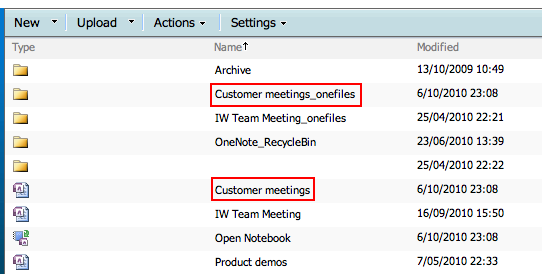
After some investigation, this was the origin of the problem:

  • My notebook was synced to a SharePoint document library
  • It was probably called “Customer notes” before, but a sync conflict added a second section “Customer notes 2”
  • I deleted “Customer notes” and tried to remove the 2 in “Customer notes 2”, but no luck.

The cause: when you have a section that contains attachments, OneNote creates a subfolder called <name of section>_onefiles. When I deleted the section “Customer notes”, it did NOT delete the folder “Customer Notes_onefiles”. That’s why I could not rename “Customer notes 2” to “Customer notes”, because the corresponding subfolder “Customer notes_onefiles” already existed.

I deleted the old “Customer notes_onefiles” and then I could rename my section. I’m a happy OneNoter again !

Office 2010 – where did the “Share” menu go?

In Office 2010 Beta, the File menu contained a Share option, that allowed you to save a file directly to a SharePoint site, or even to SkyDrive.

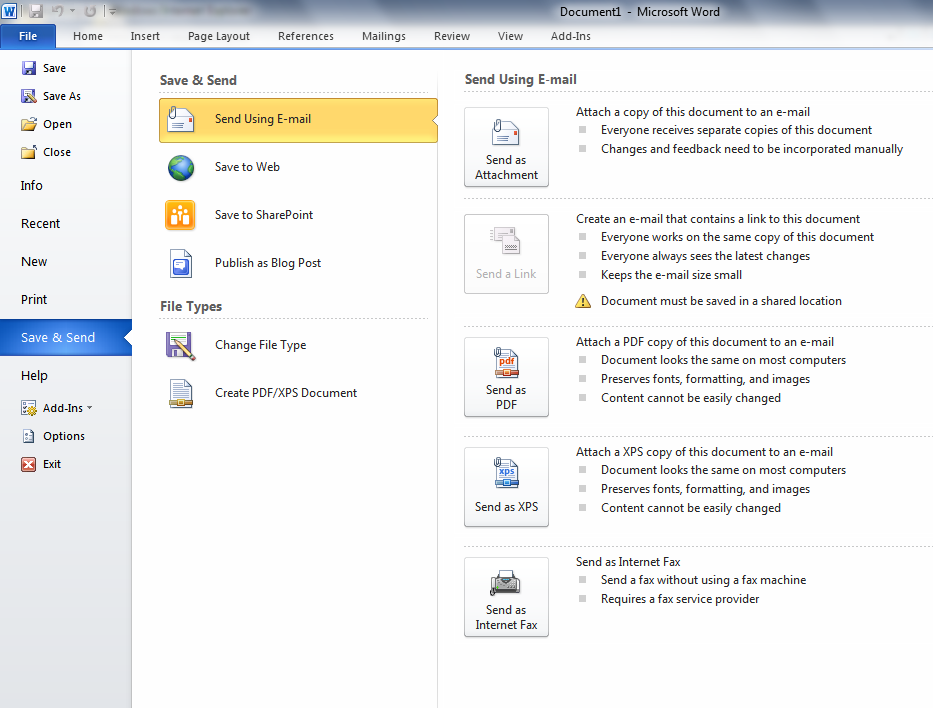
I was looking for that option in the final release, but could not find it. Well, the Share option is no longer there, but all the functionality is under Save & Send.

It took me a while to figure that out, so I thought I might share it with you.


Classic Office 2003 menus in Office 2007

Recently, my colleage Pierre pointed me to this extension for Office 2007: UBitMenu.

It restores the classic menu structure of Office 2007 on top of the Office 2007 ribbon.

In the meantime, I got used to the ribbon navigation, it really has advantages, but sometimes it would be nice to have the previous menus if you can’t find a certain functionality you don’t use very often. Microsoft also offers the interactive command references to help you out.

The tool is free for personal use.

The ribbon in SharePoint 2010

As you have probably heard, SharePoint 2010 has a total new interface on the user side: it has the ribbon as we know it from Office 2007.

There are a couple of reasons why this can probably become an issue and will require extra training for your end users:

  • a lot of companies are still running Office 2003, and will probably hold on upgrading until Office 2010 is available. These people have never seen the ribbon before!
  • the ribbon is “security trimmed”, but where in MOSS 2007 any option that you did not have access to was hidden, it is grayed out in SP 2010. This gives some very strange results if you only have read access: you get a ribbon full of disabled buttons.
  • Some functions are less accessible than befor, e.g. the content types. It requires some extra clicks to get where you want.

ribbon

Definitely something to consider when you start planning your end user training!