Using an old iPad as a digital photo frame

I have an old iPad that was lying around, gathering dust because it was actually to slow for anything. Even browsing the web was painfully slow.

So I wanted to repurpose it as a picture frame. I tried different setups, but this is the one that works best for me.

Hardware

I’m using an iPad Air 2 (from 2014). It runs iOS 15.8.5. It is permanently connected to a charger.

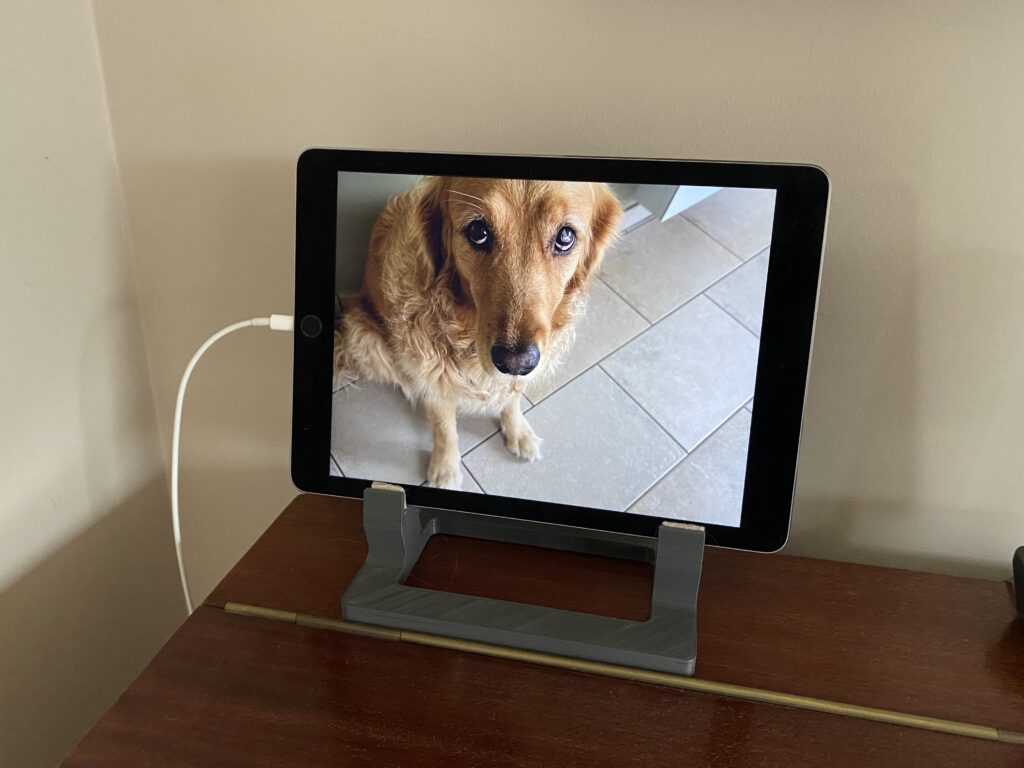
I printed this stand for it, but I guess you can find plenty of other ways to put it up nicely.

iPad Air 2 running Pixette app as digital photo frame.

Software

There are various apps that turn your iPad into a photo frame, but if you are using an old iPad, you’ll need to ensure that the app is still running correctly on older operating systems.

Pixette (https://pixette.app) turned out to be the best match for me. What makes it stand out from the other apps, is the fact that it uses the WebDAV protocol to connect to your local network. If you want to avoid cloud storage, this is a huge plus. Connecting it to our Synology NAS was a breeze using the instructions that were provided.

The free version already has a lot of features, but the annual membership price is very reasonable. Nice perks of the full version are the option to schedule the screen to turn on/off and the option to index the picture source on a regular basis.

On the iPad, you want to ensure that you disable the screen lock and that you also disable all notifications.

My top 10 tools for learning in 2023

Jane Hart is gathering votes again for her annual “Top 100 tools for learning“ ranking. It has been a while since I last contributed, it’s time to pick up this good habit again.

Here is my top 10 for this year (in no particular order):

Microsoft OneNote: although I have tried and tested more “fancy” (Notion style) note taking tools, for me OneNote is still the best note-taking application. The web version is powerful, there are clients for most common platforms, including Mac OS.
Wallabag: a self-hosted “Read Later” web application (or Pocket competitor), that allows you to capture websites via a “bookmarklet”, tag and store them for later. You can self host it, which is a privacy advantage.
WordPress: excellent blogging platform. Administration is a piece of cake, even for non-tech users, with e.g. the auto-update feature.
FreshRSS: I’m still old school, so still using RSS feeds. FreshRSS replaced the Fever app (which was no longer maintained by the author). It gathers hundreds of RSS feeds that would otherwise be impossible to follow.
Microsoft 365: the “swiss army knife” of productivity tools: enterprise-grade e-mail and calendar, SharePoint sites for collaborating or storing knowledge, and OneDrive for personal storage.
Freemind: open source mindmapping tool, replacing my earlier (too expensive) MindMeister
X (formerly known as Twitter): I was hesitating to keep this one on the list. The attitude of their new owner and the fact that Tweetdeck (the only way to filter out corporate BS and focus on the people you want to hear from) became a paying option have put me in serious doubt. Maybe the last year…
Microsoft Teams: my daily hub for “informal learning” and “knowledge sharing” with my colleagues. It remains a bit clumsy and managing the “firehose” of information is not always easy, but I’m learning to like it.
LinkedIn Learning: a very rich range of e-learning courses on various subjects. I like the variation in subjects, approaches, level of detail…
Obsidentify: not a “corporate” learning tool, but if you are interested in nature, this app helps you to identify wild plants and animals by simply taking a picture of them.
Merlin Bird ID: same as above, but this time an app for identifying birds by simply recording the sound of them.

Sonos controller update fails on macOS Ventura

After the installation of macOS Ventura (currently 13.1), the update of the Sonos Controller app would fail systematically with the error message: Sonos update failed – an unexpected error occurred.

This can be resolved by adding some permissions for the Sonos Installer:

  • Open System preferences
  • In the navigation column on the left, select Privacy & Security
  • In the Privacy section, select App management
  • Make sure that the switch is on next to Sonos Installer. This will give the installer the necessary rights to update the app.
Change the setting to ON for Sonos Installer