
Can’t connect to Windows 11 vm via RDP: wrong password

I installed Windows 11 on a virtual machine running on Synology Virtual Machine manager. I followed these instructions, everything went smoothly. During the installation, I connected with my Microsoft account, I authenticated via Microsoft Authenticator during the setup and created a PIN. All good.

I then activated the option to connect via Remote Desktop and tried to connect remotely to the workstation.

The issue: incorrect credentials

When I connected via Remote Desktop and tried to authenticate with my Microsoft account and password, the connection was refused and I got the message that my credentials were incorrect.
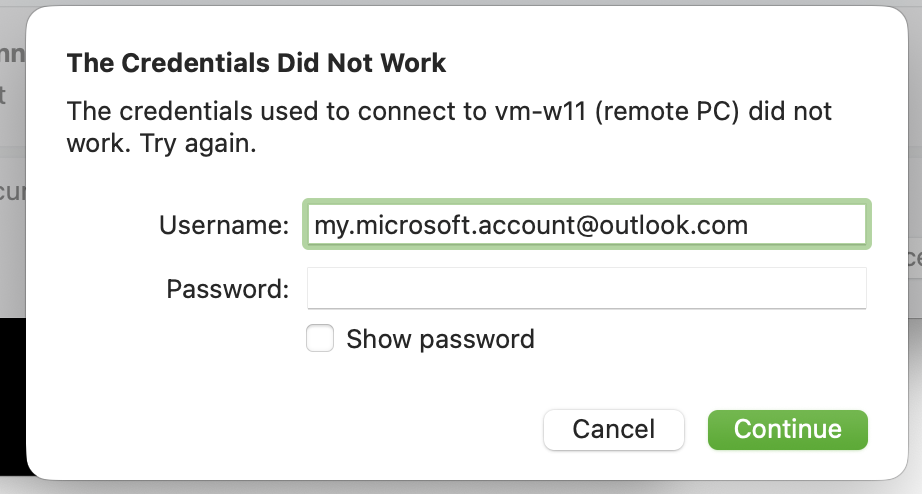
Of course I quadruple-checked my password, but no luck.

The solution

It seems that you need to login at least once with your Microsoft account password before you can connect remotely. So I logged on on the console, selected to connect via password instead of Pin or Authenticator, and voilà: I could connect via Remote Desktop afterwards.
Microsoft Teams for Mac: login fails with endless loop

I wanted to use the Microsoft Teams app on macOS to login to my personal Office 365 account, but I recently used it to login to my corporate account. That did not work out very well: Teams got into an “endless loop” asking me to sign in over and over again. It looks like Teams has some issues when switching between different accounts.

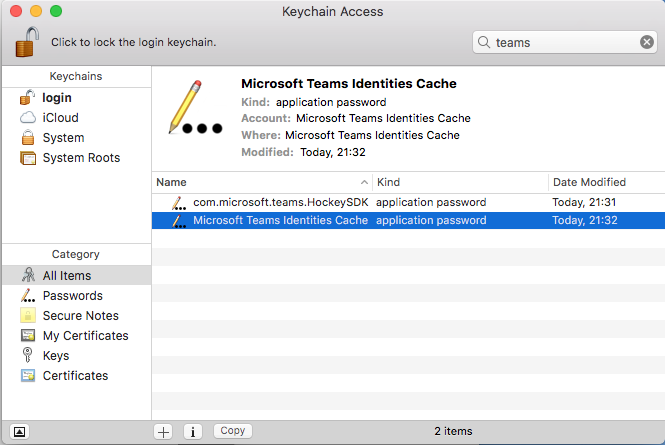
I got this solved by opening Keychain Access, and deleting the entry called Microsoft Teams Identities Cache. After that, I could sign in to Teams again with the correct account.

Snip, a free screen capture tool

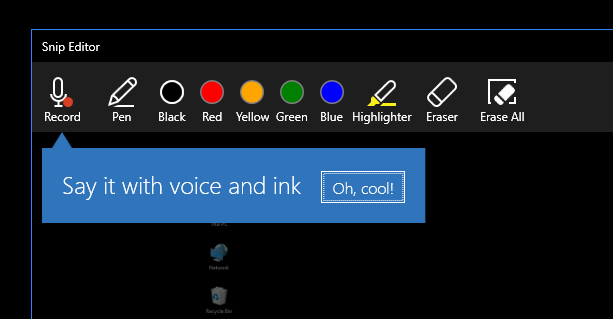
If you occasionally need to take a screenshot (or a screen capture of your screen), recent versions of Windows provide you with the Windows Snipping tool. It works well for simple jobs, but a recent Microsoft Garage project called Snip takes it to the next level.

snip

It offers a number of advantages:

  • it runs in the background and is always available
  • it stores your screenshots in a “library” without having to save manually to a file
  • you can annotate your screenshot with various drawing tools. Especially useful when you are using a tablet
  • you can save your annotations in a video file and add voice-over to it (very handy for describing an issue)


Microsoft Surface Pro 3 hangs on black “Surface” boot screen

On several occasions, I had my Surface Pro 3 freeze up on me on the boot screen. When I would turn on the surface, it would get to the black screen with the Surface logo, but it would not get any further. No spinner, no activity, nothing.

The following procedure fixes my issue every time:

  • if the Surface is turned on, turn it off by holding the power button for at least 30 seconds
  • press and hold the volume up button and the power button simultaneously for 15 seconds, then release the buttons
  • screen will flash and the Surface will shut down (sometimes it gets stuck at the bios screen, just exit then)
  • turn the device back on. Things should be ok now.

Check the following link for more troubleshooting tips.