
Interface language in Adobe Presenter projects

In one of our recent projects, we used Adobe Presenter to create some course material and quizzes based on PowerPoint slides. This actually works very well, but one thing bothered me: the “interface” of the course or quiz is sometimes shown in a different language. We are talking about these texts:

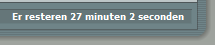
presenter1

presenter2

I was wondering how you could “force” it to be in one language, and what was the logic behind it. This is what I found out:

  • the language you get in the interface is based on the Regional Settings of the pc you display the content on. So NOT on the language settings of your browser (which seems more logical to me). This is an issue in Belgium as we have French (Belgium) and Dutch (Belgium), and not every computer is configured correctly.
  • the text is only modified if your regional settings are set to one of these languages: German, French, Korean, Japanese, Portuguese, Spanish, Italian, Simplified Chinese, or Dutch. In all other cases, English is shown.
  • you can customize this text by creating a custom theme with the Theme Editor for your project. Consult the Adobe Presenter help pages for the correct procedure.

And this last topic gives you a possible solution for a “fixed” language: if you set the labels for all languages to the same language, you have your uni-lingual interface. That’s a lot of copy-pasting, but it works!

LMS or no LMS?

Today, I attended a seminar organised by BE-ODL about the use of a Learning Management System. Lots of interesting presentations and a good discussion. One of the returning topics was the contradiction between the upcoming usage of social learning tools (“Learning 2.0”) versus the formal aspect of a LMS (reporting, tracking…)

In my opinion, this will always remain a contradiction (that’s why one is called “informal” and the other “formal” 🙂 ) but if you do not provide your learners the possibility to use the newer tools on your own network, then be prepared to find your company content open and freely available on YouTube, Twitter, Delicious, Google Docs and others… Learners will find a way.

I stumbled upon an interesting presentation … on SlideShare. And if you wander off to other similar presentations (is that so bad?), you will find even more…

Post-session material

For those who followed my SharePoint introduction session on the Microsoft SMB Roadshow, here are some links that will help you evaluate Microsoft Office SharePoint Server or Windows SharePoint Services:

  • the Microsoft “Fabulous 40” templates
  • a comparison of the different versions of SharePoint
  • a trial download of Microsoft Office SharePoint Server
  • a planning guide for your first SharePoint site