
Running Home Assistant in Synology Virtual Machine Manager (VMM)

I wanted to run Home Assistant in a virtual machine on a Synology 925+ NAS. The instructions on the HA site are for the docker version and don’t give any specific details for the built-in virtualisation tool of Synology (Virtual Machine Manager) so here is the config that worked for me:

  • Navigate to https://www.home-assistant.io/installation/alternative/ and download the .ova image
  • On your Synology, open Virtual Machine manager
  • Select Virtual Machine, don’t click Create but Import
  • Select Import from OVA files
  • Select the .ova file you just download (stored on your pc or on the NAS)
  • Select the storage of your choice
  • Select the following options for the General specifications
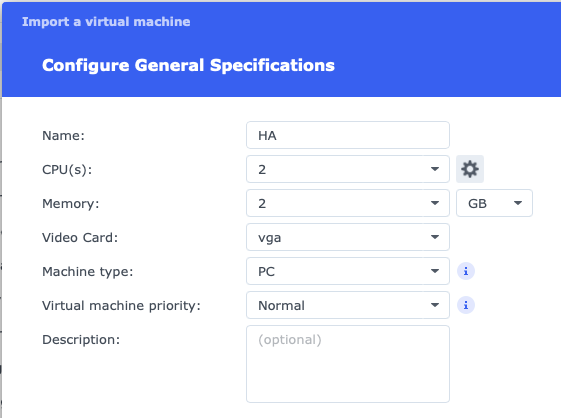
  • Select the size of your disk (I kept the proposed 32 GB)
  • Select your desired network settings (I kept the default)
  • In the Other settings screen, make sure to select UEFI for the Firmware setting. Leaving it on Legacy BIOS made the machine hang on boot for me
  • Select the user(s) that will have management permissions on your virtual machine
  • Review the settings and finish the import

Convert a VMware Fusion virtual machine to VirtualBox on mac

I needed to convert a virtual machine created on VMware Fusion 9, to make it run on VirtualBox 5. To do that, you need to convert the virtual machine to the Open Virtualisation Format (.OVF).
These are the steps to accomplish this:

  • Locate the file of the VMware virtual machine you want to convert
  • Right-click and select Show Package Contents
  • Copy all these files to a new folder
  • Download and install the VMware OVF Tool. This is a command line tool that will do the conversion.
  • Open Terminal and execute the following command
    ovftool <source image>.vmx <target image>.ovf

    The conversion can take quite some time. For me, it took about 3 hours for a 140 GB Windows 8 image

  • Once the conversion is finished, open VirtualBox and from the File menu, select Import appliance

After the import, power on the VM, uninstall the VMware Tools and install the VirtualBox Guest additions.

Vmware Fusion rocks!

I have been quite busy the last two weeks with the preparation of our Clients’ Day. My colleagues have built a great infrastructure in Vmware, representing a “Virtual Company” with more than 40 servers, virtual desktop infrastructure, Office Communication Server… Really cool stuff.
Thanks to them, I was able to test Vmware Fusion, the virtualization tool for Mac. I now have the fastest Windows XP ever… on my iMac! Fusion has a sort of “quick install mode” for Windows: you specify your logon name, enter the license key, hit OK, turn around, and… it’s installed!