
Using an old iPad as a digital photo frame

I have an old iPad that was lying around, gathering dust because it was actually to slow for anything. Even browsing the web was painfully slow.

So I wanted to repurpose it as a picture frame. I tried different setups, but this is the one that works best for me.

Hardware

I’m using an iPad Air 2 (from 2014). It runs iOS 15.8.5. It is permanently connected to a charger.

I printed this stand for it, but I guess you can find plenty of other ways to put it up nicely.
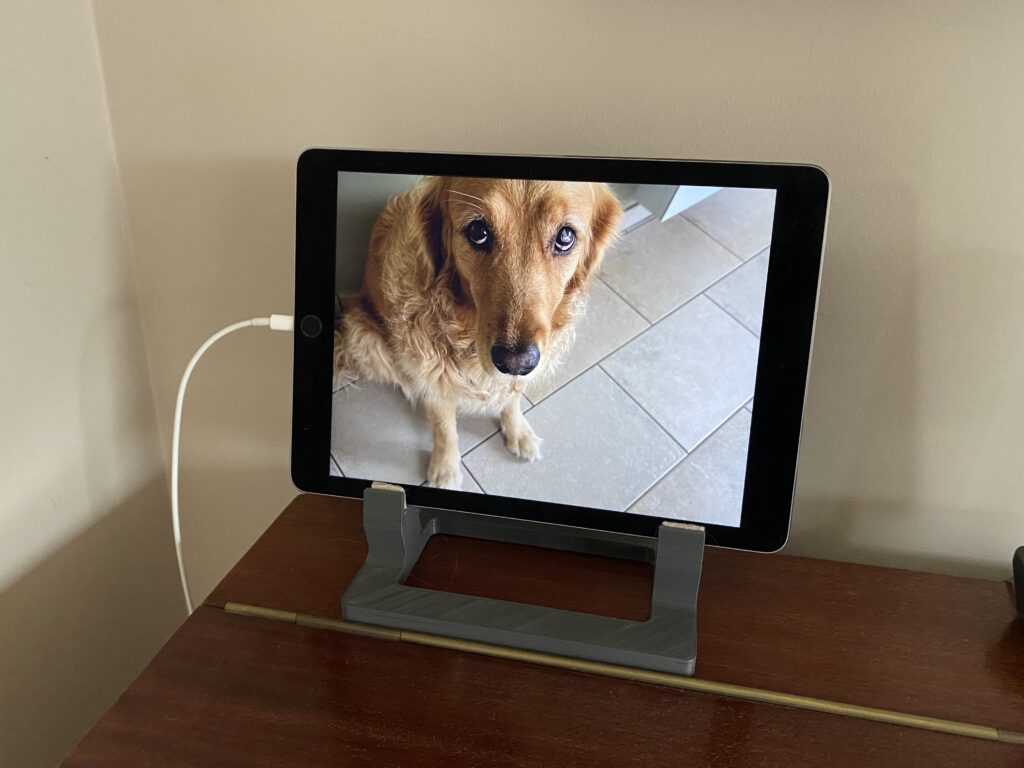
iPad Air 2 running Pixette app as digital photo frame.

Software

There are various apps that turn your iPad into a photo frame, but if you are using an old iPad, you’ll need to ensure that the app is still running correctly on older operating systems.

Pixette (https://pixette.app) turned out to be the best match for me. What makes it stand out from the other apps, is the fact that it uses the WebDAV protocol to connect to your local network. If you want to avoid cloud storage, this is a huge plus. Connecting it to our Synology NAS was a breeze using the instructions that were provided.

The free version already has a lot of features, but the annual membership price is very reasonable. Nice perks of the full version are the option to schedule the screen to turn on/off and the option to index the picture source on a regular basis.

On the iPad, you want to ensure that you disable the screen lock and that you also disable all notifications.
AirPlay no longer working on Apple TV 2nd generation

I recently had reset an older Apple TV (2nd generation) to the factory settings. After that, AirPlay did not work anymore. The Apple TV could not be found on the network (or example when trying to screen mirror from an iPhone), and when I navigated to Settings > General > About on the device, it showed Activation: failed

These are the steps I took to resolve the issue::

  • Make sure that you are signed in to iCloud on the Apple TV
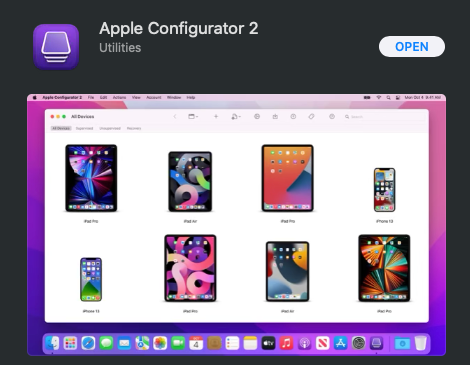
  • Install Apple Configurator 2 on your Mac
  • Connect your Apple TV to your Mac with a micro-USB cable
  • Select your Apple TV when it appears
  • In the menu on the left, select Profile
  • Click the Activate button

After that, Airplay started working again, and the Activation: failed message disappeared.

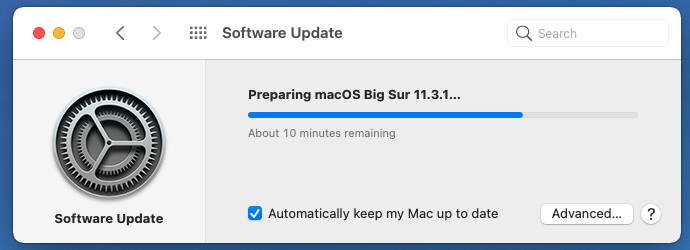
Software Update to macOS Big Sur 11.3.1 stuck at “10 minutes remaining”

I had some trouble updating my Mac to macOS Big Sur 11.3.1. The update would remain stuck at “About 10 minutes remaining”, even after leaving it on all night.

The only way to get it to install correctly, was to reboot in Safe mode:

  • Shutdown your mac
  • Power it on again, and keep the Shift key pressed
  • Release when you get to the login screen

That fixed it for me. More info on Safe mode here.

Where is the magnifying glass/bubble in iOS 13?

If you recently upgraded to iOS 13 and your mobile keyboard skills are not those of a digital native (like mine), then you probably miss the “magnifying bubble” of the previous versions of iOS. You could tap your error, and the little magnifying glass showed you the text under your finger, and you could navigate precisely to the error.

In iOS13, the bubble is gone. But no fear, you have a similar (if not better) feature for correcting your texts if you follow this procedure:

  1. Type your text
  2. Press and hold the spacebar on the keyboard
  3. Move your finger from left to right to move the cursor to the error
  4. VoilĂ  !